How to layer glitter HTV – Halloween shirt

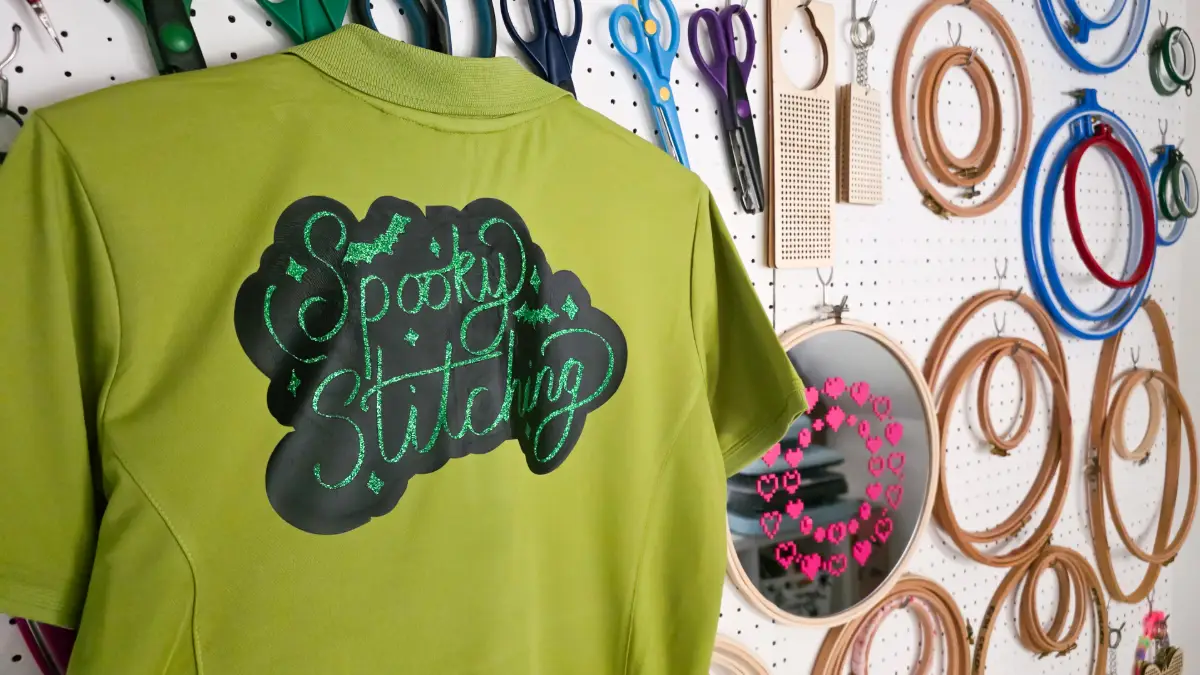
Halloween is a great time to try out some fun materials, and glitter HTV is one of my favourite ways to add instant magic to your designs. Let me show you how to layer glitter HTV to make a fun Halloween shirt! Don’t forget you can also download the free spooky stitching svg featured in this project at the bottom of this post.

To make the Halloween shirt you will need
- Cotton / polyester mix shirt
- Glitter htv
- Regular HTV
- Auto Heat Press 2
- cutting machine or your choice. (I have tested this project with the LokLik iCraft, xTool and Cricut)
- weeding tools
- free spooky stitches svg (download at the bottom of this post)
Step 1: download the Spooky stitching svg
Download the free spooky stitching svg and upload it into your cutting software. Resize it to fit your shirt. I opted to put mine on the back in a bowling shirt style but you can also add the design to the front. Measuring the flat area upper half of the shirt first will help you decide on the best size for your design.
Step 2: cut your htv
You need to cut two layers for this design. The base layer is reglar HTV and the top text layer will be the glitter HTV.
Place your htv shiny side down on your cutting mat. Mirror your design before cutting. Glitter htv still needs to be mirrored because you cut from the back.
Cutting settings:
Cricut – standard blade, Glitter HTV
Silhouette – blade 1, speed 5, Force 8, passes 2, material smooth
Loklik iCraft – Fine point blade, Force 6.5, 1 pass
Step 3: weed the designs
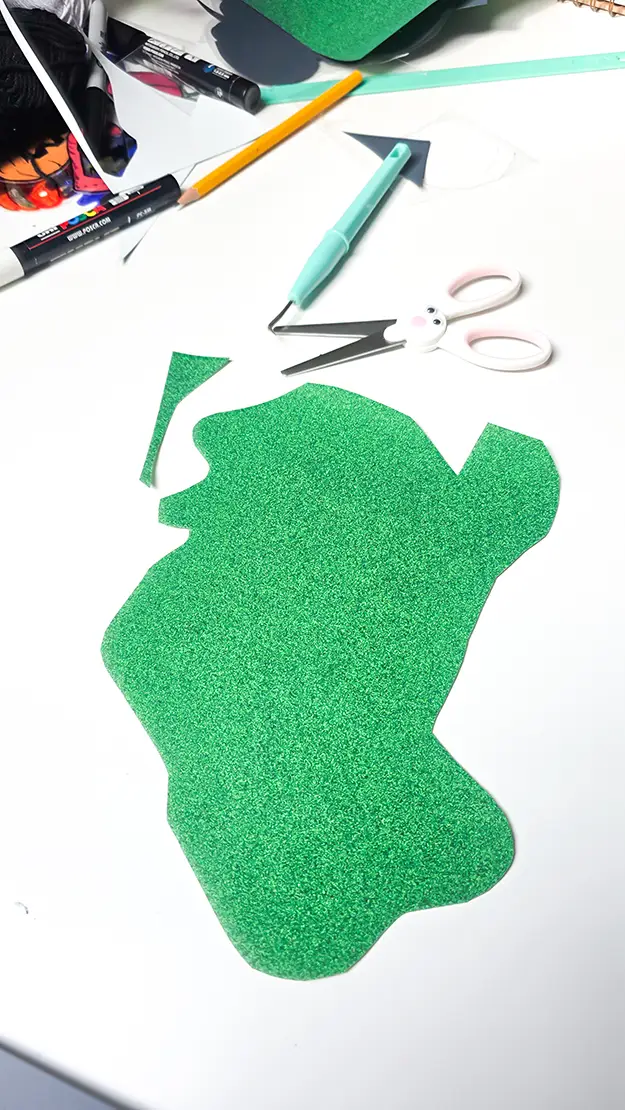
Weed away the excess vinyl, leaving only the design on the carrier sheet. Patterned htv should weed smoothly, but take your time around any small details. Trim the carrier sheet down to avoid an outline appearing when pressing on your tote.
Step 4: press your design
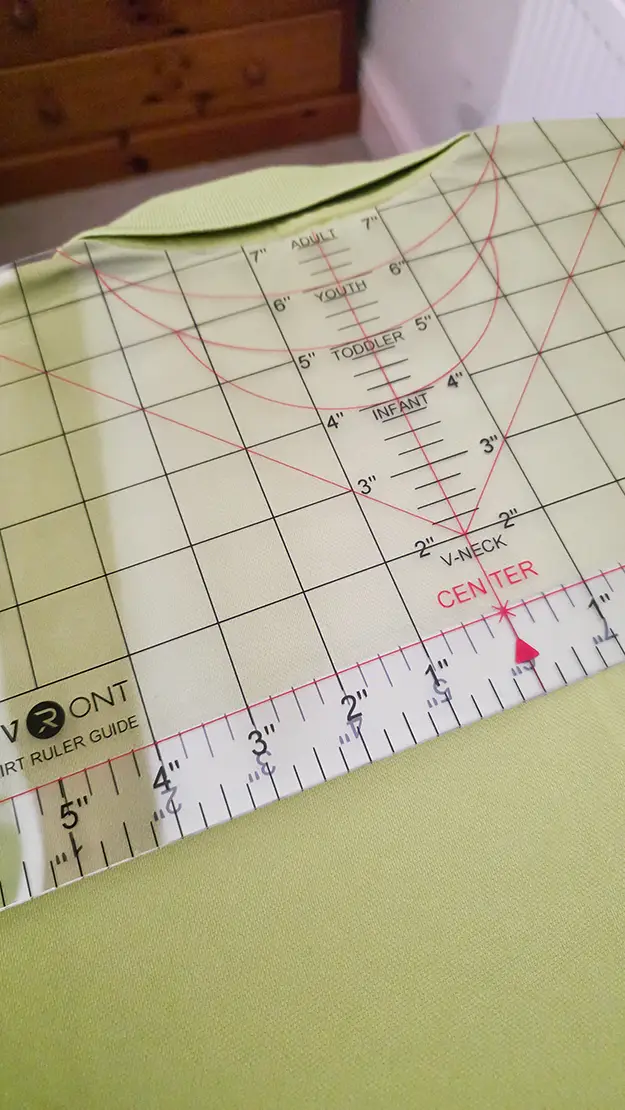
Preheat your shirt for a few seconds to remove moisture. Fold your shirt in half to find the center point. You may find it useful to use a tshirt ruler guide to help you position your design.
Fold the carrier sheet but not the design, in the center for alginment.
Position your regular htv on the shirt, cover with a Teflon sheet and press. Use the recommended settings for htv on your heat press. Allow to cool and peel the carrier sheet away. Repeat the alignment steps and add the glitter vinyl, cover and press. Cool and peel.

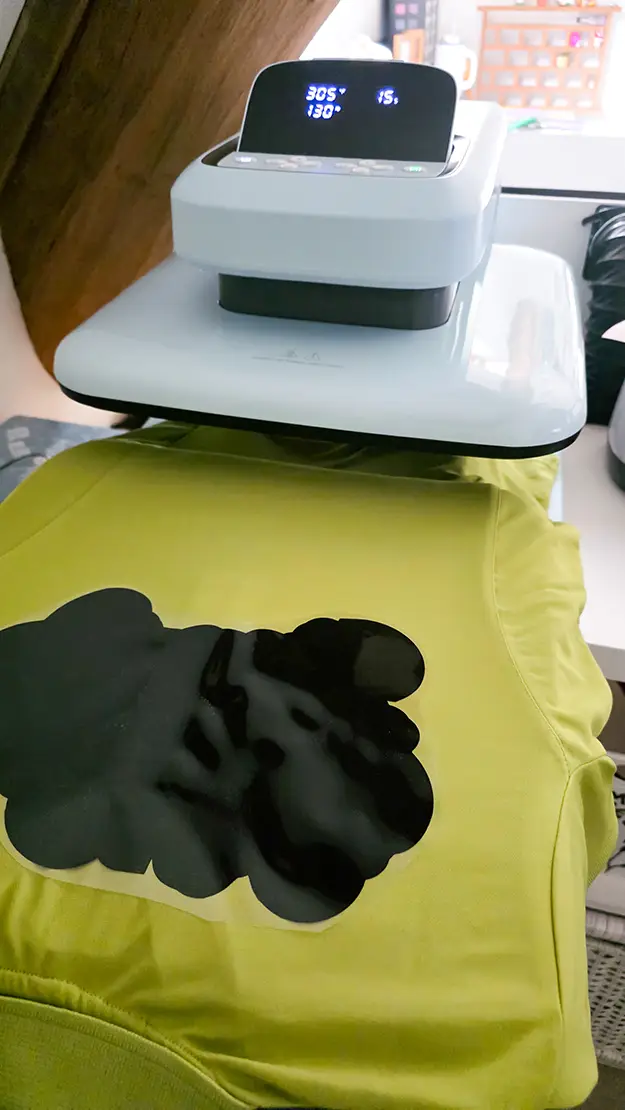
I used the HTVRONT Auto Heat Press 2 with their regular and glitter HTV. Get $52 off of with code Ruth10
My settings were: 305f, medium pressure, for 15 seconds. Cool peel.
Top tips
- Glitter HTV must be the last layer you apply as other HTV will not stick to its surface. It you want to avoid to much bulk, for example with multiple layers, try using the knock of method to subtract the top glitter layer from the layers underneath in you design software. This way it is nested inside the other layers.
- Make sure you have a sharp blade and that not scraps are stuck to it when cutting your HTV to keep the cuts clean.
Download the free spooky stitching svg
You can download the spooky stitching svg for free and make your own version of this shirt. Or try it on wooden signs, totes, hoodies or even cardstock.